
Gmail Delivery Format Explained: Which Field Is the Address, Password, Recovery Email and 2FA Key
October 6, 2026
GmailBuy Support Desk· Customer support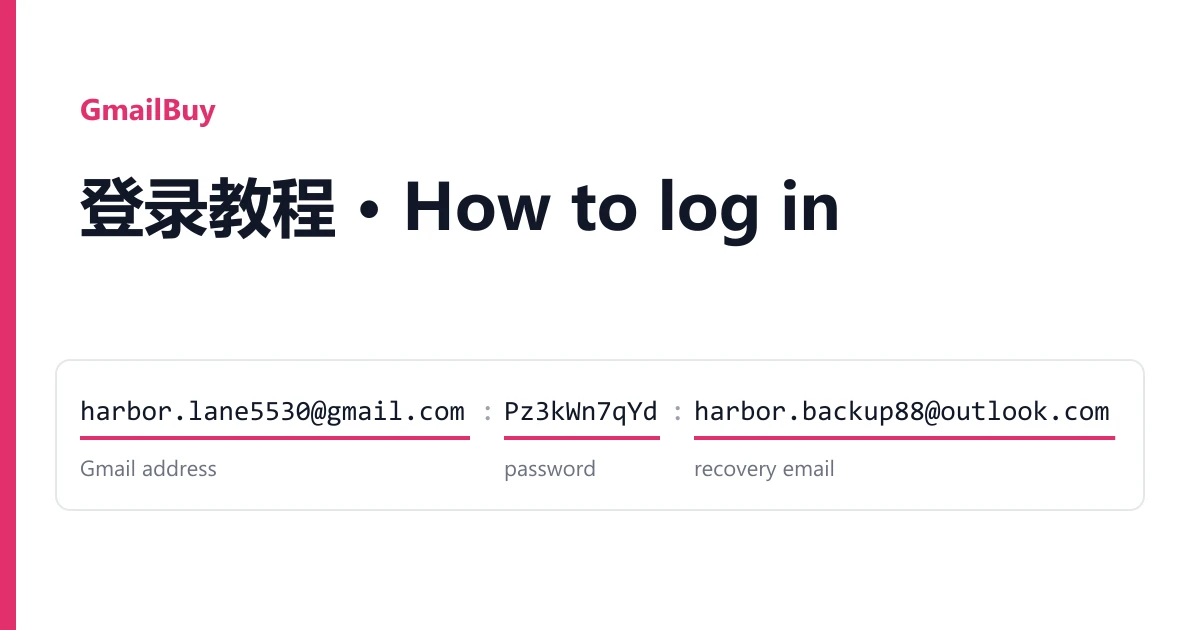
Your Gmail accounts are on your order page, not in your email. Open Dashboard → Orders, pick the order, and the box called Delivered accounts holds one account per line. Copy credentials copies all of it; Download saves it as a text file.
A Gmail line usually has two to four parts, and two of them are email addresses. That is where most mix-ups start. Buyers type the recovery address into the sign-in box, or paste the whole line into the password field, and Google says no. Spend one minute on the table below and you will not make either mistake.
Recognise each field by its look
Batches come from different suppliers, so the separator changes: |, ---- or a tab. The order of the fields is fairly steady, but read them by their look rather than their position.
| Field | What it looks like | What you do with it |
|---|---|---|
| Gmail address | Always first. Ends in @gmail.com | Type it into the sign-in box at accounts.google.com or gmail.com |
| Password | Right after the address. Letters and digits, no @ | The Gmail password |
| Recovery email | A second address with an @, usually at another mail provider | Type it in only when Google asks you to confirm the recovery email. You cannot sign in with it |
| 2FA key | A long run of four-character groups separated by spaces, such as k7qa m3xe p2vd w6tn ... | Turns into the 6-digit sign-in code (see below). Never type the key itself into Google |
| Backup codes | Several 8-digit numbers in a row, after the 2FA key | Each one works once in place of a 6-digit code |
| App password | 16 lowercase letters, on some batches only | For mail apps and scripts over IMAP or SMTP. It does not open gmail.com |
Not every batch carries every field. The product page says what that listing promises; anything beyond it is extra. Our old Gmail accounts, for example, ship a recovery email and a 2FA extra on most batches, not all of them.
Real shapes from recent orders
Every value below is made up. The shapes and separators are what buyers on this site actually received.
walnut.ridge4127@gmail.com|Tq8vRm2pLx
Gmail address | password

harbor.lane5530@gmail.com|Pz3kWn7qYd|harbor.backup88@outlook.com
Gmail address | password | recovery email

cedar.vale2291@gmail.com----Mx6tHb4rJe----vale.mail07@hotmail.com
Gmail address ---- password ---- recovery email

ember.cove3307@gmail.com----Rk2wQs9nUf----cove.relay41@yahoo.com--------us
Gmail address ---- password ---- recovery email ---- (empty) ---- short tag

maple.ford6612@gmail.com	Lv5cXp8sGa	ford.notes19@outlook.com	k7qa m3xe p2vd w6tn r4hy c5jb f3zs n5lu	40381927	71520384	...
Gmail address · password · recovery email · 2FA key · 10 backup codes (all tab-separated)
Two of these trip people up. In the fourth line, eight dashes in a row are two separators with nothing between them: an empty field, not part of the recovery address. The two letters after it are a tag the seller added. You don't need them to sign in.
The last line is the long one. On screen a tab looks like a few spaces, and the 2FA key has spaces of its own, so it is easy to copy too much or too little. Click Download and open the file in a plain text editor. The key is the block of short letter groups; the 8-digit numbers after it are the backup codes.
Sign in step by step
- Open accounts.google.com (or gmail.com) in the browser you plan to keep using for this account.
- Enter the Gmail address, press Next, then enter the password. Copy them from the line without any spaces before or after.
- If Google shows a captcha, type the characters it shows. That is routine on a first sign-in.
- If Google asks for a code from an authenticator app, open the checkkit 2FA code generator, paste the 2FA key (spaces are fine) and type the 6 digits it gives you. The code changes every 30 seconds.
- No 2FA key in your line but you have backup codes? Choose "Try another way" and pick the backup code option, then enter one 8-digit code.
- If Google asks you to confirm the recovery email, type the recovery address from your line, exactly as written.
Backup codes are one-time. Once you use one, delete it from your copy so you never try it twice. Keep the 2FA key safe too: Google will ask for a new code on every new device, and the key is the only way to make one.
About the recovery email
The recovery address belongs to the account's original setup. Google uses it in two ways on a new device. Sometimes it asks you to type the address, and you can, because it is in your line. Sometimes it sends a code to that mailbox, and in most cases you cannot open it. We do not deliver its password.
So be clear about what counts. If the very first sign-in, done the way described above, will not go further without a code sent to the recovery mailbox, the account is not working as delivered. Take a screenshot and report it from the order page. That is a replacement case, not something you are expected to solve.
The first few days
Keep one browser profile and one connection, leave the password, recovery email and 2FA alone for now, and don't send bulk mail from a fresh sign-in. For a USA Gmail account, a US connection fits best. When and how to take over the security settings is covered in our guide to logging in safely and setting up 2FA.
When something goes wrong
Google shows a human-verification check or asks for a phone
Complete the check. If it keeps coming back, stop for a while; repeated attempts make Google stricter. No phone number comes with these accounts, so if Google insists on one and offers no other way, open a ticket with a screenshot instead of retrying. One buyer hit the human-verification check on a whole batch and got replacements this way. For the longer list of prompts and fixes, see Google account maintenance and troubleshooting.
The 6-digit code is rejected
Set your device clock to update automatically, then make a fresh code. A clock that is off by a minute produces codes Google refuses. Also check you pasted only the key, not the backup codes after it.
"Wrong password" or "account disabled"
Copy the password again on its own. With ---- lines it is easy to pick up a dash; with tab lines, a stray space. If it still fails, report it.
Can I add a card or PayPal to the account?
We guarantee that the account signs in as delivered. Whether Google Pay, PayPal or any other service accepts it afterwards is their decision, and it is not part of what we promise.
The account does not work at all
Open a ticket from the order page within the guarantee period shown on the product (24 hours on both current Gmail listings). Say which line failed and attach a screenshot of what Google shows.