
How to Log In to a Purchased Google Account Safely (and Set Up 2FA)
12 juin 2026
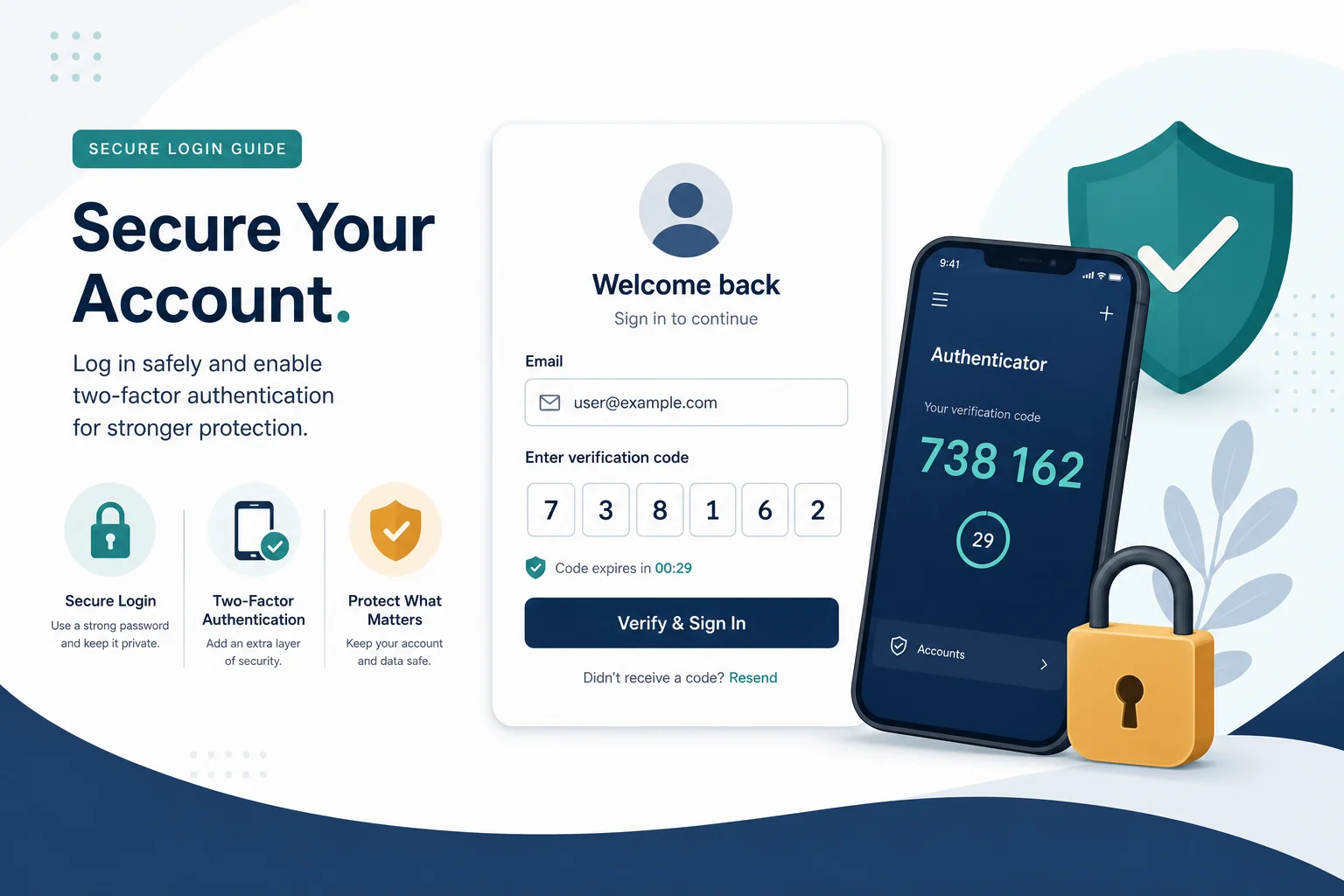
Most purchased Google accounts that die never make it past the first hour. Not because the account was bad - because the new owner logged in from the wrong place, changed three settings, and triggered a security review before the account ever did anything useful. The login itself is where people lose accounts they just paid for.
So this is the careful version: how to sign in to a Google or Gmail account you bought, and how to lock it down with two-step verification without locking yourself out. If you have not chosen the account yet, our guide to buying aged Gmail accounts safely covers picking the right type first.
The first login: what to touch, what to leave alone
Treat the first session like a test drive, not a renovation. You are confirming the account works and that you have full access - nothing more. Open the inbox, read an email or two, and close the tab. Resist the urge to "secure everything" immediately, because a burst of changes on a fresh login is exactly what an automated review looks for.
| On first login - do | On first login - do not |
|---|---|
| Log in from an IP that matches the account's country | Sign in over a datacenter VPN or shared office IP |
| Confirm inbox, recovery email, and any recovery phone are visible | Change the password, recovery email, or phone on day one |
| Read a couple of emails, then leave | Mass-delete mail or empty the spam folder |
| Use one fingerprint-browser profile dedicated to this account | Open it in the same Chrome window as your other accounts |
| Wait a few days before enabling new security settings | Turn on 2FA, change the name, and edit the photo in one sitting |
Operator checklist - the safest first session is an almost boring one.
One IP rule worth repeating: sign in from a residential IP that matches where the account was registered. A US account logging in from a US residential line looks normal; the same account on a German datacenter IP looks stolen. The deeper maintenance and proxy setup lives in our account maintenance and troubleshooting guide.
Setting up two-step verification without locking yourself out
Give the account a few quiet days first. Once it has some normal activity behind it, then add two-step verification. The order matters more than people think - 2FA added to a calm account is routine; 2FA added in the same minute as a password change reads as an account takeover.
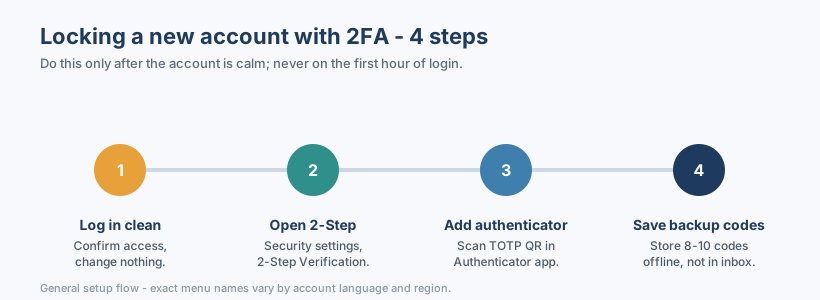
The flow is short. Open the account's Security settings, find 2-Step Verification, and add an authenticator app by scanning the TOTP QR code. Then - and people skip this - download or write down the backup codes and store them somewhere offline. Not in the same inbox. If the phone dies, those codes are the only way back in.
SMS codes, authenticator app, or backup codes?
All three are "2FA", but they fail differently. Here is the honest trade-off.
| Method | Security | Lockout risk | Best for |
|---|---|---|---|
| SMS / phone code | Lower - SIM and number issues | High if the number is rented or shared | Quick signup gates where a phone is required |
| Authenticator app (TOTP) | Higher - codes live on your device | Medium - losing the device locks you out | Long-term accounts you control |
| Backup codes | High if stored offline | Low - they are your safety net | Recovery when phone or app is gone |
Illustrative comparison - pick the mix that matches how long you plan to keep the account.
For an account you intend to keep, an authenticator app plus saved backup codes beats SMS. SMS is fine as a one-time signup gate, but a number you do not permanently own is a liability - if it gets recycled, you lose the recovery path.
About SMS-code (接码) services
Sometimes a platform demands a phone number you do not have, and a code-receiving service fills that gap for the one verification. Useful, but understand the limit: a rented number is temporary. Use it to clear a single signup or verification step, then move the account's real recovery onto an authenticator app and backup codes you control. Building long-term 2FA on a number you rented for five minutes is how people get permanently locked out later.
When login asks for extra verification
Sometimes a sign-in throws up "Verify it's you", a phone-number request, or a regional block on services like Gemini. Do not panic-change settings - that usually makes it worse. Most of these come down to IP, region, or account-type mismatches, and each has a calm fix. We walk through them in the maintenance and troubleshooting guide.
The pattern across all of this is the same: log in like a normal user from a matching IP, let the account settle, then add 2FA in the right order and keep offline backup codes. Accounts that survive are not the ones with the most security toggles flipped on day one - they are the ones handled gently. If you are still sourcing stock, gmailbuy.org lists Gmail, EDU, Outlook, and Twitter accounts with what each includes spelled out, so you know whether a recovery email or phone is part of the deal before you buy.