
Keeping a Bought Google Account Alive: Maintenance, Fixing Flags, and After-Sales
12 июня 2026 г.
Buying a good Google account is the easy part. Keeping it alive is the job. An account that was perfectly clean on delivery can still get flagged a week later - not because the account changed, but because the way it was used changed. Different IP, a rotating proxy, ten profiles in one browser, and suddenly Google wants a phone number.
This guide is the maintenance and repair manual: the daily habits that keep an account off the radar, the calm fixes for the flags you will actually hit, and the point where you stop troubleshooting and file for a replacement. If you are still at the login or 2FA stage, start with our secure login and 2FA setup guide first.
Daily maintenance that keeps accounts off the radar
Two things do most of the work here: a dedicated browser environment and a stable IP. Each account gets its own fingerprint-browser profile - separate cookies, canvas fingerprint, timezone, and language - so platforms cannot link it to your other accounts. Tools like AdsPower or Multilogin handle this. The rule underneath it is simple: never sign into two accounts from the same browser window.
The IP matters just as much. Each account should sit behind a residential IP that matches its registration country, and for an aged account that IP should stay stable for weeks, not rotate every request. For country-matched residential or mobile lines we have had decent results with HstockPlus Proxy, and LunaProxy is a reasonable alternative with static-ISP and per-GB residential plans. Static for aged accounts; rotating is only fine for fresh, low-stakes testing.
| Cadence | What to do |
|---|---|
| Daily | 10-20 min of normal use: read a few emails, one or two searches, vary the timing |
| Per account | One browser profile + one static residential IP, country-matched |
| Weekly | Log in at human hours; avoid bursts of identical activity across accounts |
| Never | Share a recovery phone, run many accounts through one exit node, or batch-change settings |
Operator routine - consistency beats intensity, the goal is to look unremarkable.
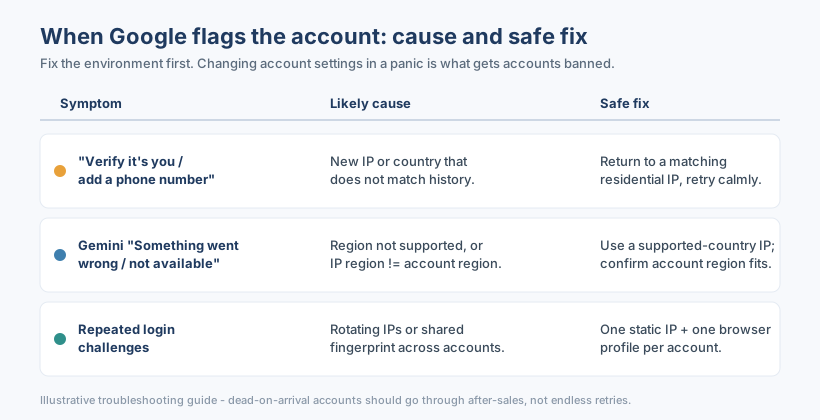
Fix: "Verify it's you" or "add a phone number"
This is the most common flag, and the most over-reacted to. Google throws it when a login looks unfamiliar - usually a new IP, a different country, or a sudden change in device fingerprint. The instinct is to immediately add a phone number to make it go away. Slow down.
First, get back to a residential IP that matches the account's country and try again from its normal browser profile. A lot of the time the challenge clears on its own once the environment looks familiar. If a phone number genuinely is required, use one you can keep - not a number you rented for five minutes - because that number becomes a recovery path you may need later. Whatever you do, do not also change the password and recovery email in the same session; stacking changes on top of a challenge is what escalates it to a full suspension.
Fix: Gemini "Something went wrong" or "not available in your country/region"
This one confuses people because it looks like the account is broken. Usually it is not. Gemini and some Google services are gated by region, and the message shows up in two situations: the account's region is not supported, or your current IP region does not line up with the account.
The fix is environmental. Connect through a residential IP in a country where the service is available and that matches the account's own region, then reload. If the account region itself is unsupported, no proxy trick fixes that cleanly - you would need an account registered in a supported country, which is a sourcing decision, not a settings one. Match the IP region to the account region and you clear most of these.
Troubleshooting at a glance
| Symptom | Likely cause | Safe fix |
|---|---|---|
| "Verify it's you" / phone request | New IP or country vs history | Return to matching residential IP, retry, do not stack changes |
| Gemini "Something went wrong" | Region unsupported or IP/region mismatch | Supported-country IP that matches account region |
| Repeated login challenges | Rotating IPs or shared fingerprint | One static IP + one browser profile per account |
| Account asks for ID / disabled | Hard suspension trigger | Stop retrying; file after-sales (see below) |
Illustrative guide - if an account is hard-disabled, retries only burn time.
When to stop troubleshooting and use after-sales
Here is the line: environmental flags are yours to fix, but a dead-on-arrival or hard-disabled account is a supply problem. If an account fails before you have done anything to it, or gets disabled despite a clean IP and a single browser profile, stop retrying and file for a replacement. Hammering a disabled account with more login attempts only wastes the guarantee window.
| Qualifies for replacement | Usually does not |
|---|---|
| Dead or disabled on first login | Banned after you changed settings on day one |
| Wrong details vs the listing (no recovery, wrong type) | Flagged after running 20 accounts on one IP |
| Reported within the stated guarantee window | Reported weeks later with no usage log |
General eligibility - the exact window and terms depend on the seller's policy.
When you do file, keep it simple: the account, what happened, and the step where it failed. A clear report inside the window gets resolved fast. On gmailbuy.org each listing states what it includes and is backed by a short replacement-guarantee window, so a genuinely dead account gets swapped instead of argued over - submit it through the after-sales flow rather than retrying it to death.
The throughline is the same as everywhere else in this game: most problems are environment, not account. Keep one profile and one steady IP per account, fix flags by making the login look normal again, and save after-sales for the accounts that were broken before you touched them. Do that and the accounts you maintain quietly outlast the ones you fight.